How Gitfence works
What admins set up, what restricted people and agents do, and what happens to the code in between.
- Connect your GitHub repo. Your team keeps working there.
- Pick who sees what, per folder or file.
- Each person and agent gets their own clone.
- Their pushes become pull requests on GitHub.
Short answer: Gitfence keeps a private copy of your GitHub repository and builds a separate, filtered version of its history for each set of permissions. Restricted people and their agents clone that version with plain git. When they push a branch, Gitfence checks every changed file against their access, applies the change to the full repository and opens a normal pull request on GitHub.
The moving parts
 Restricted person / AI agent ──git / MCP──► Gitfence
                                               │  their view: filtered history, only what they may see
                                               │
                                               │  private mirror (never served to anyone)
                                               ▼
 Your core team ─────────────── git ───────► GitHub  (source of truth: code, CI, reviews, issues)
- GitHub stays the source of truth. Your team keeps pushing, reviewing and running CI on GitHub. Nothing about their workflow changes.
- Restricted people get a different clone URL,
https://gitfence.dev/<owner>/<repo>.git, authenticated with a Gitfence token. - People with identical permissions share a view. A per-person exception gives that person their own view.
For admins: set it up
1. Connect a repository
Sign in with GitHub and install the Gitfence GitHub App on the repository. Gitfence keeps its private mirror in sync from push webhooks.
2. Decide who sees what
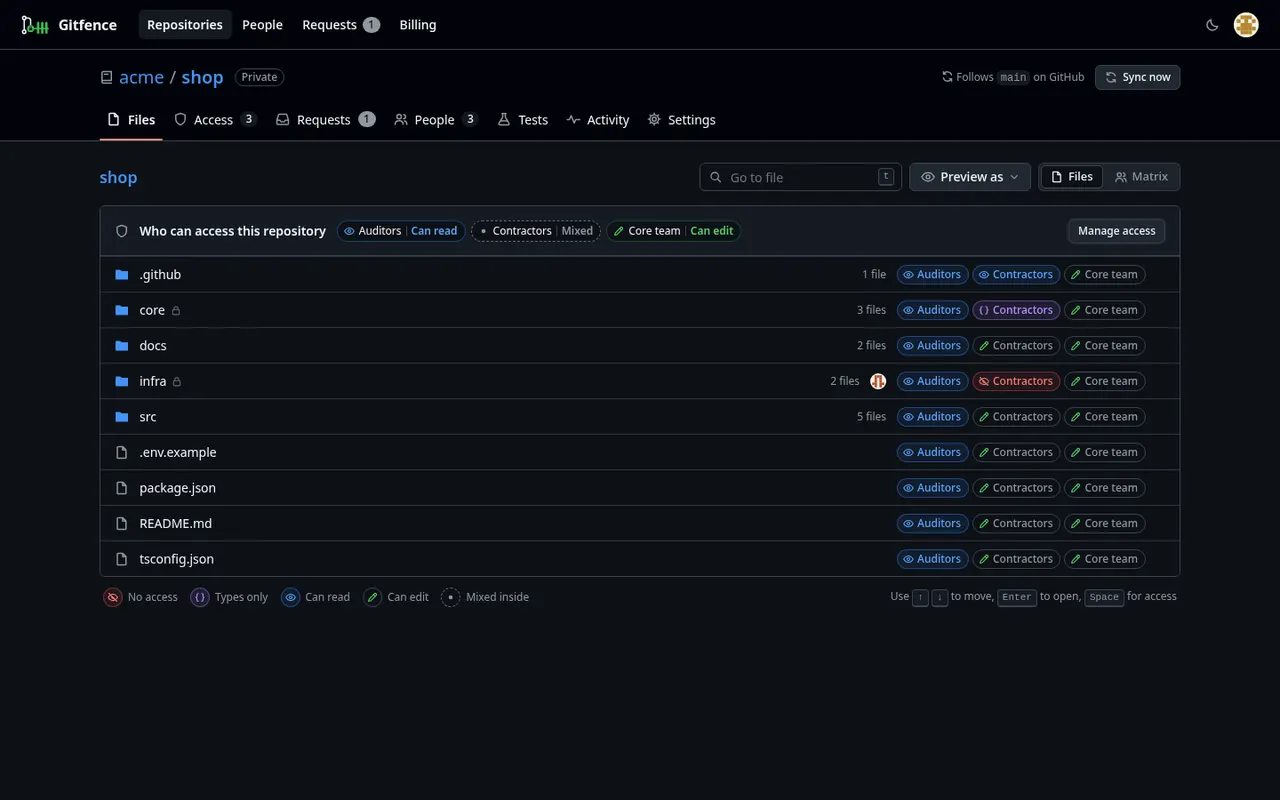
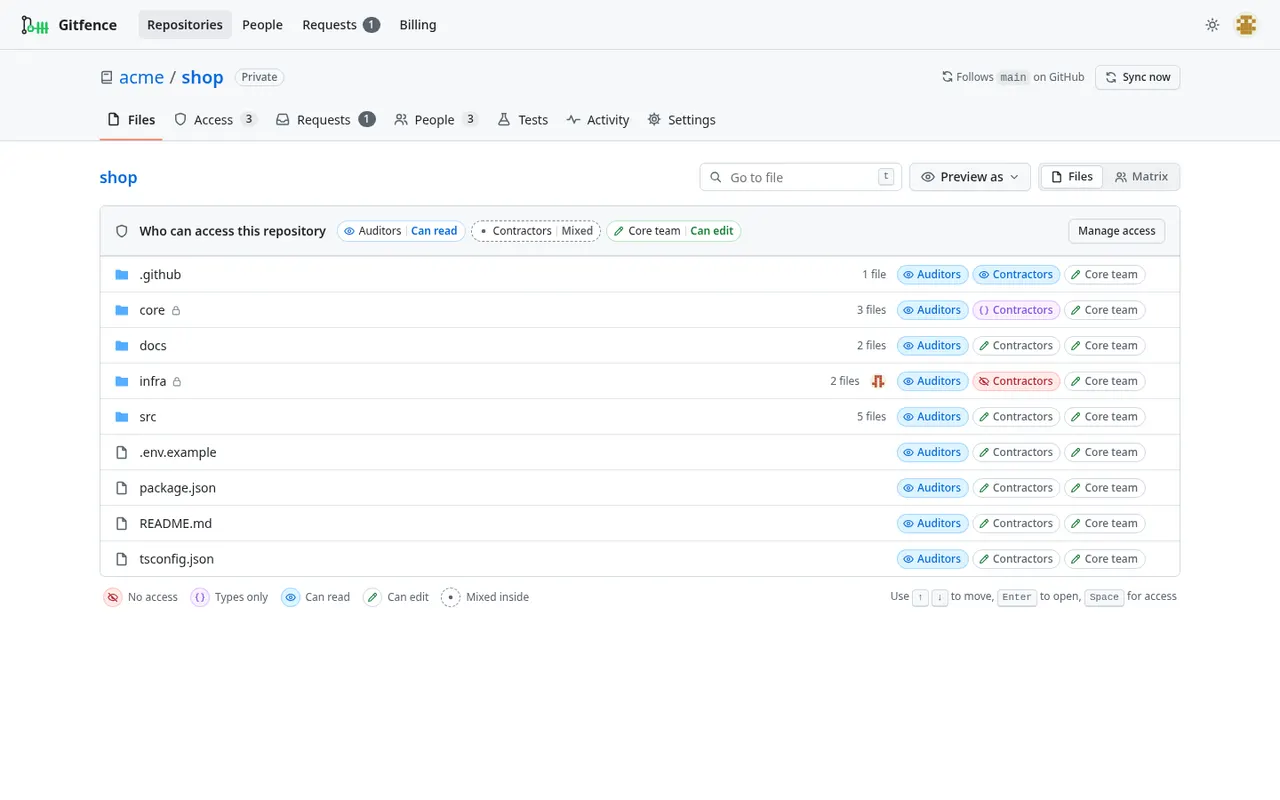
The Files tab shows every folder and file with each group's access next to it. Click a folder to choose a level per group:
| Level | What the person gets |
|---|---|
| No access | Nothing. The path is absent from every commit of their view, including history |
| Types only | The API without the implementation: TypeScript declarations (.d.ts), or Go and Python stubs at the same path, with every value removed. They can import from it, build and type-check, but can't edit it (details) |
| Can read | The source, read-only. Pushes that change it are rejected |
| Can edit | Full access. Changes arrive as pull requests |
A rule applies to a folder and everything in it; a rule on a subfolder or file inside it overrides it. CI workflows, .gitattributes, .gitmodules and .gitfence.yml are read-only for restricted people unless you explicitly allow them.
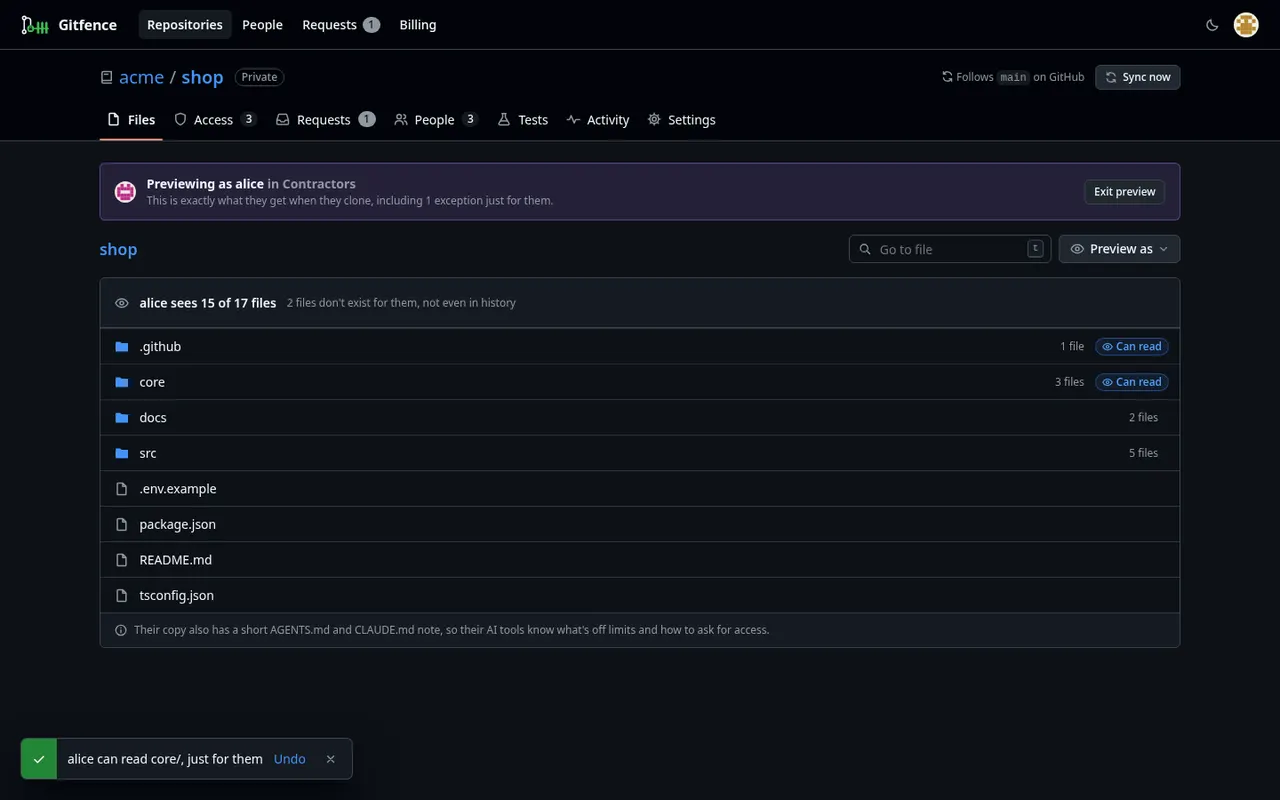
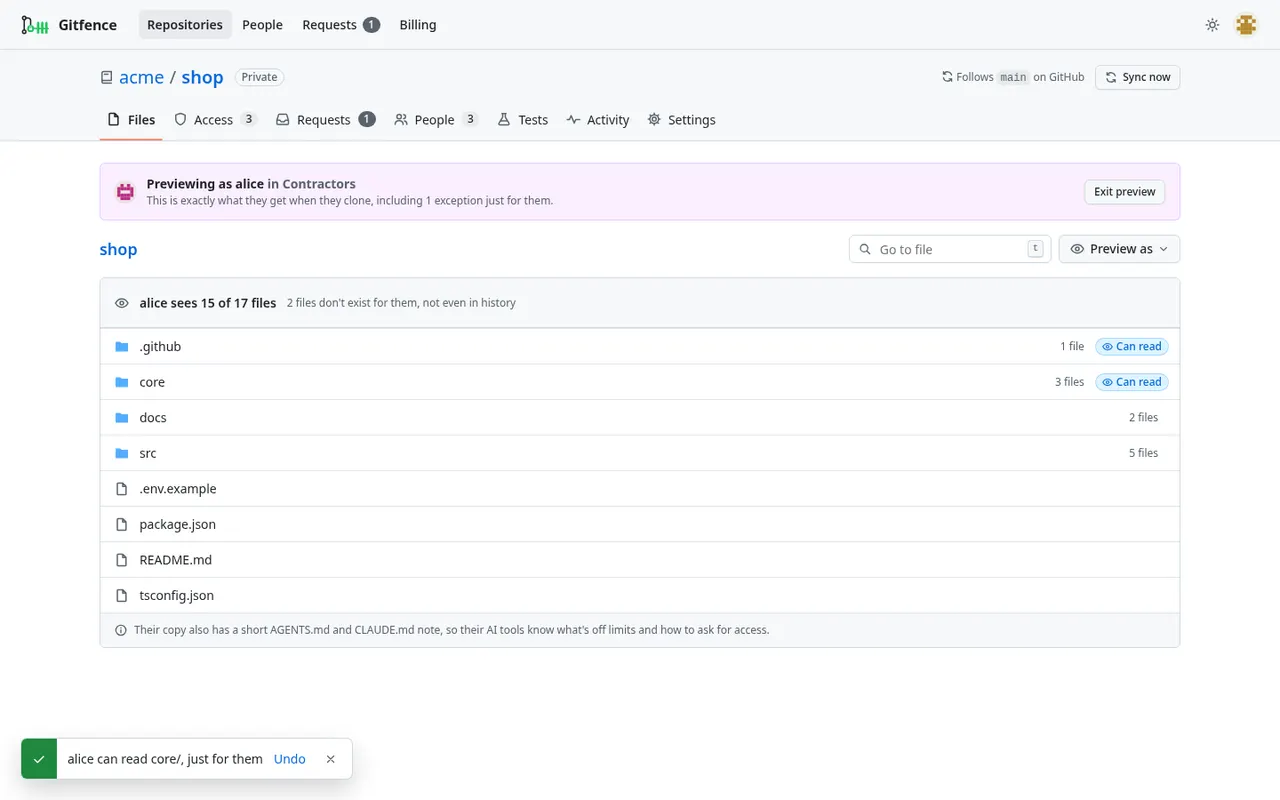
Exceptions give one person different access to one path on top of their group, for example letting a senior contractor read core/types.ts. Preview as shows exactly what someone's clone will contain before you save.
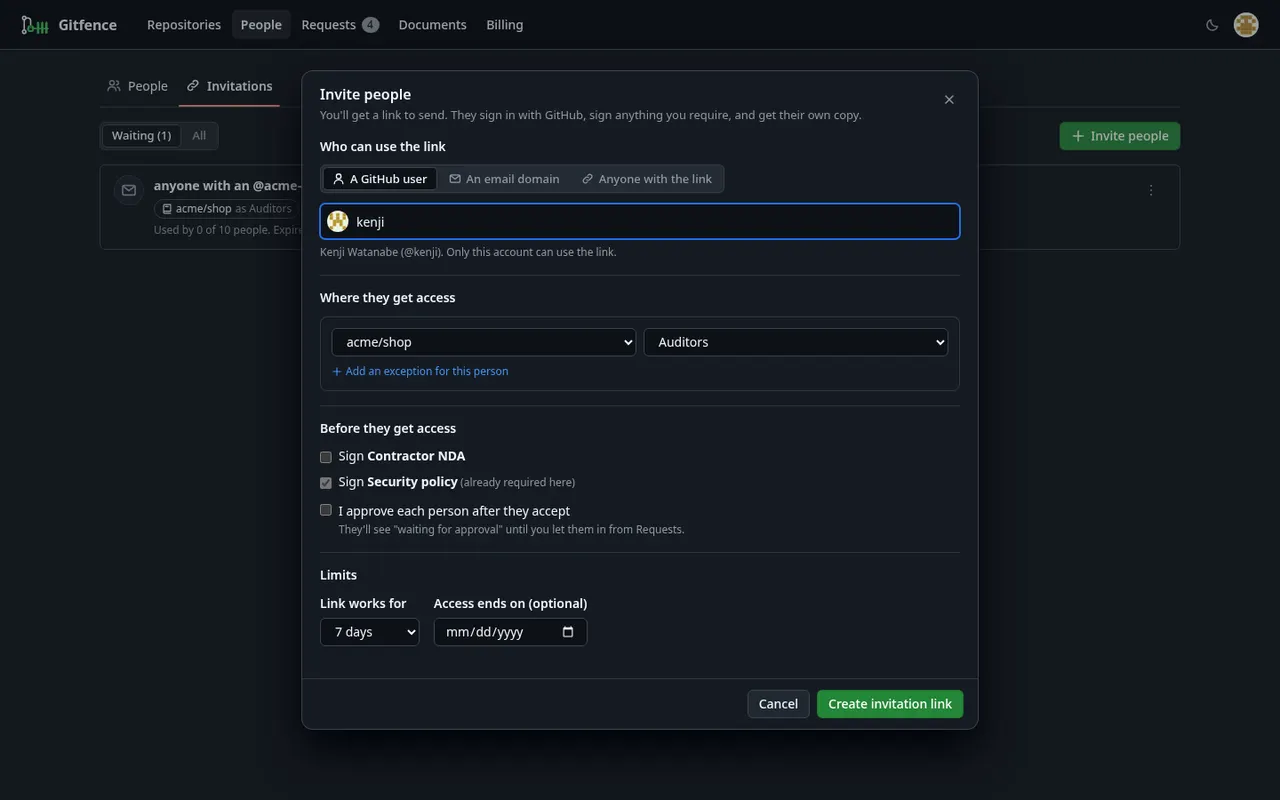
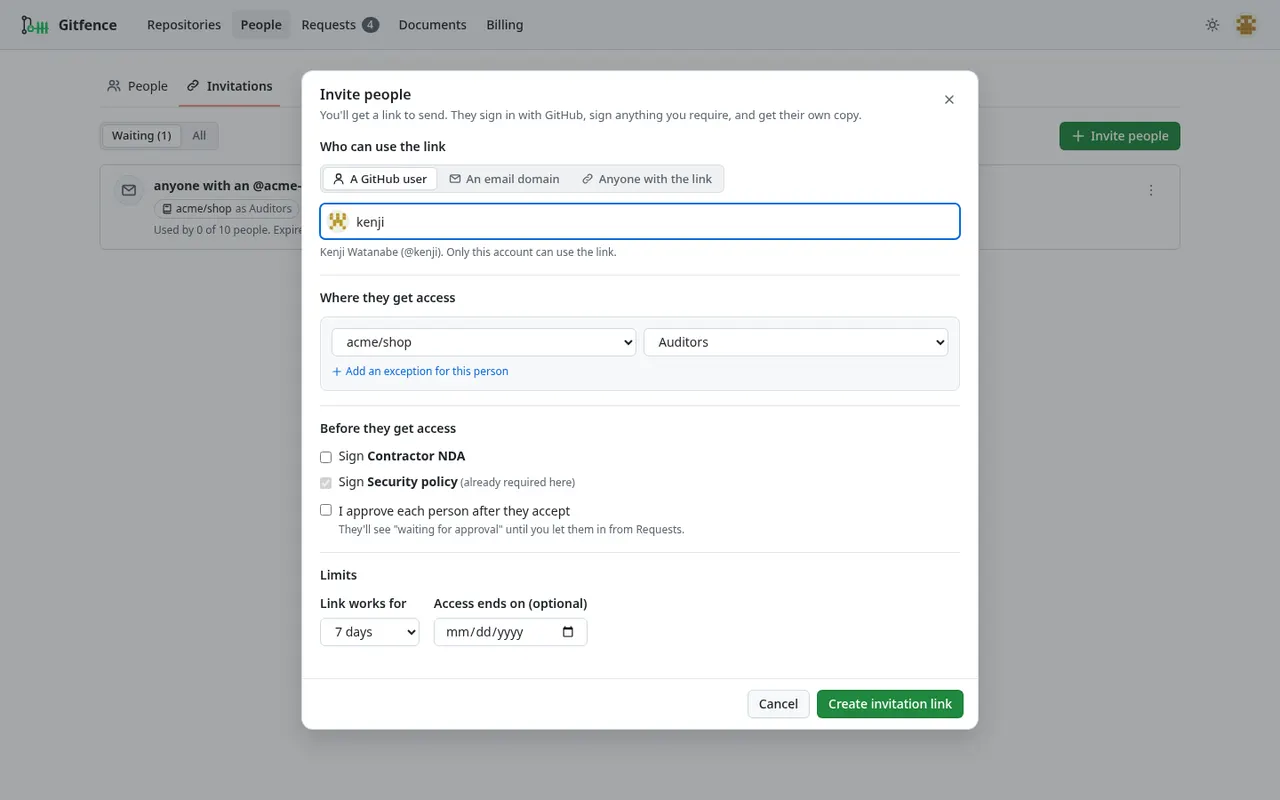
3. Invite people
An invitation is a link. You choose:
- who can use it: one GitHub user, anyone with an email at your domain, or anyone with the link
- which repository and group they join, plus any exceptions
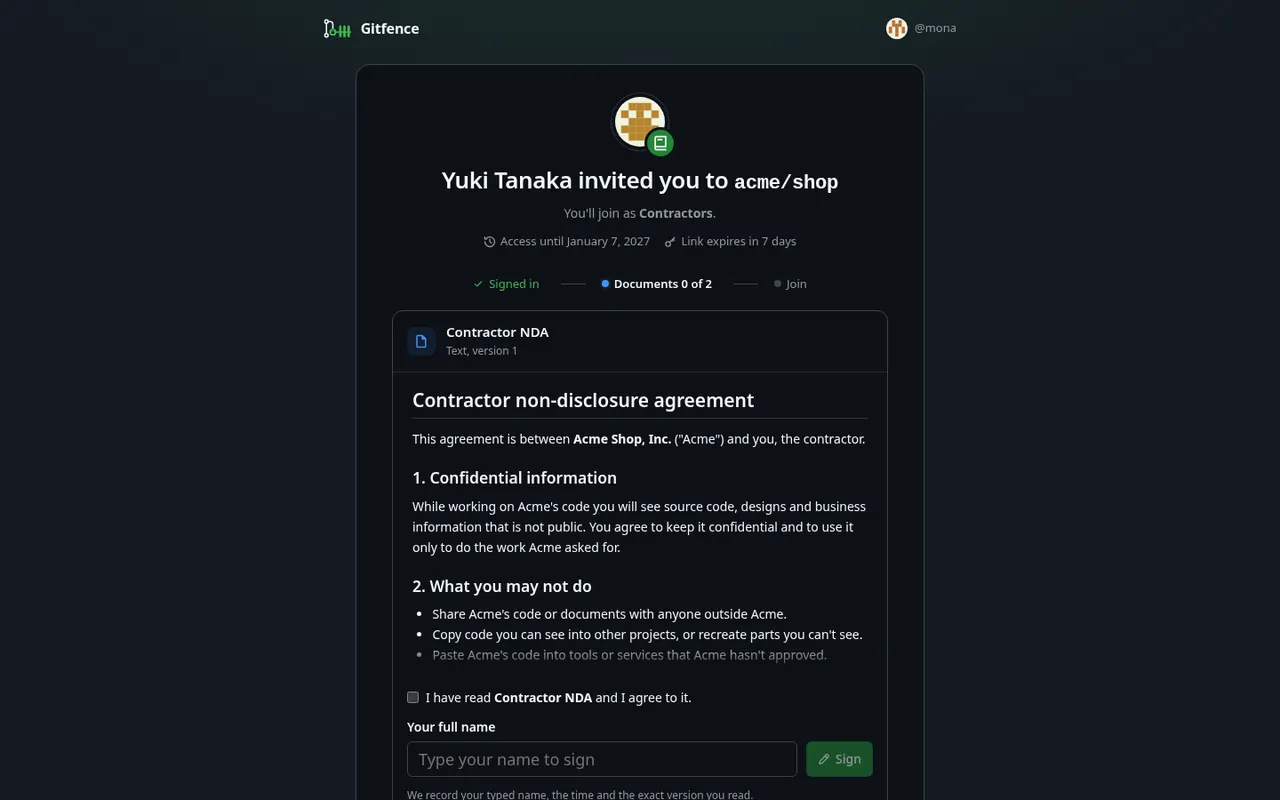
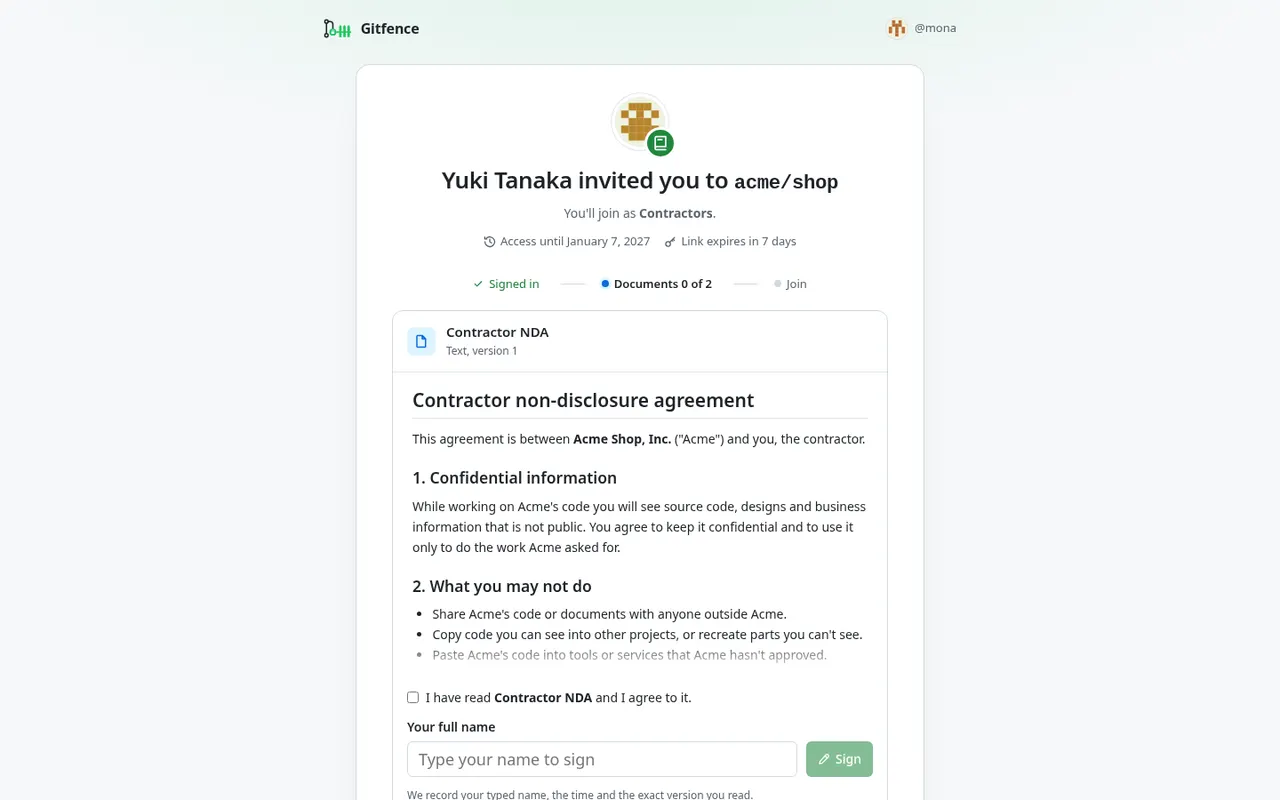
- documents they must sign first (an NDA, a security policy), uploaded as PDF or written in markdown
- whether you approve each person after they accept
- how long the link works and, optionally, when their access ends
Until every required document is signed (and approved, if you asked for that), git, the MCP server and Fenced CI all refuse with a message telling them what to sign. Each signature records the document version and its SHA-256 hash, the typed name, time, IP address and browser, and you can export a certificate for it.
4. Handle requests
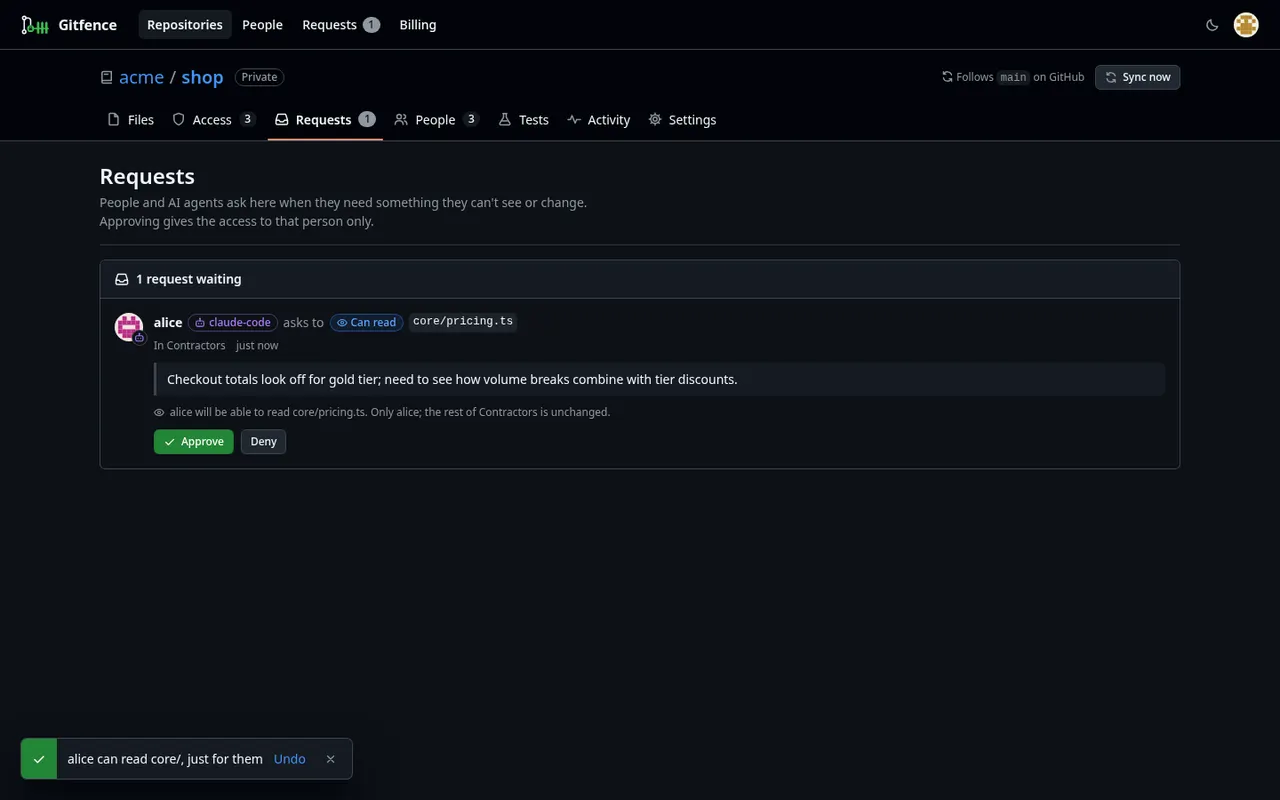
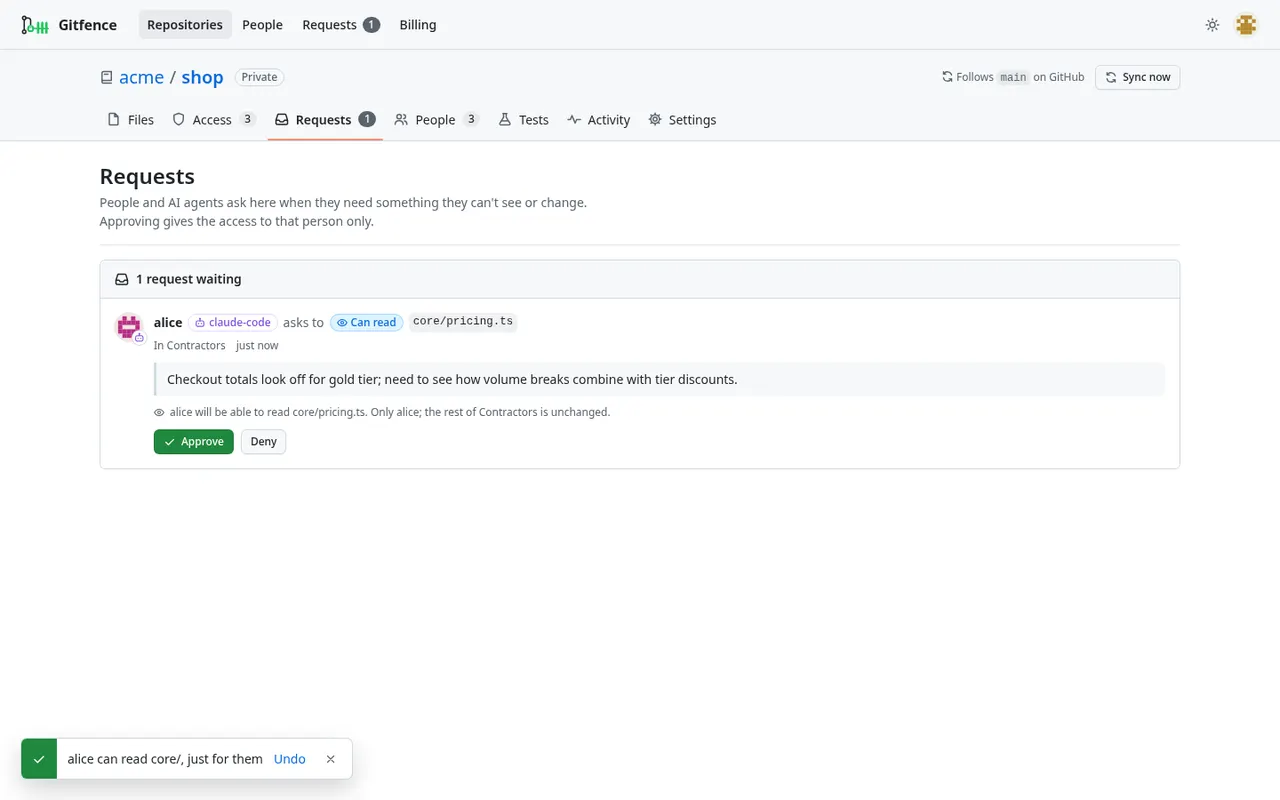
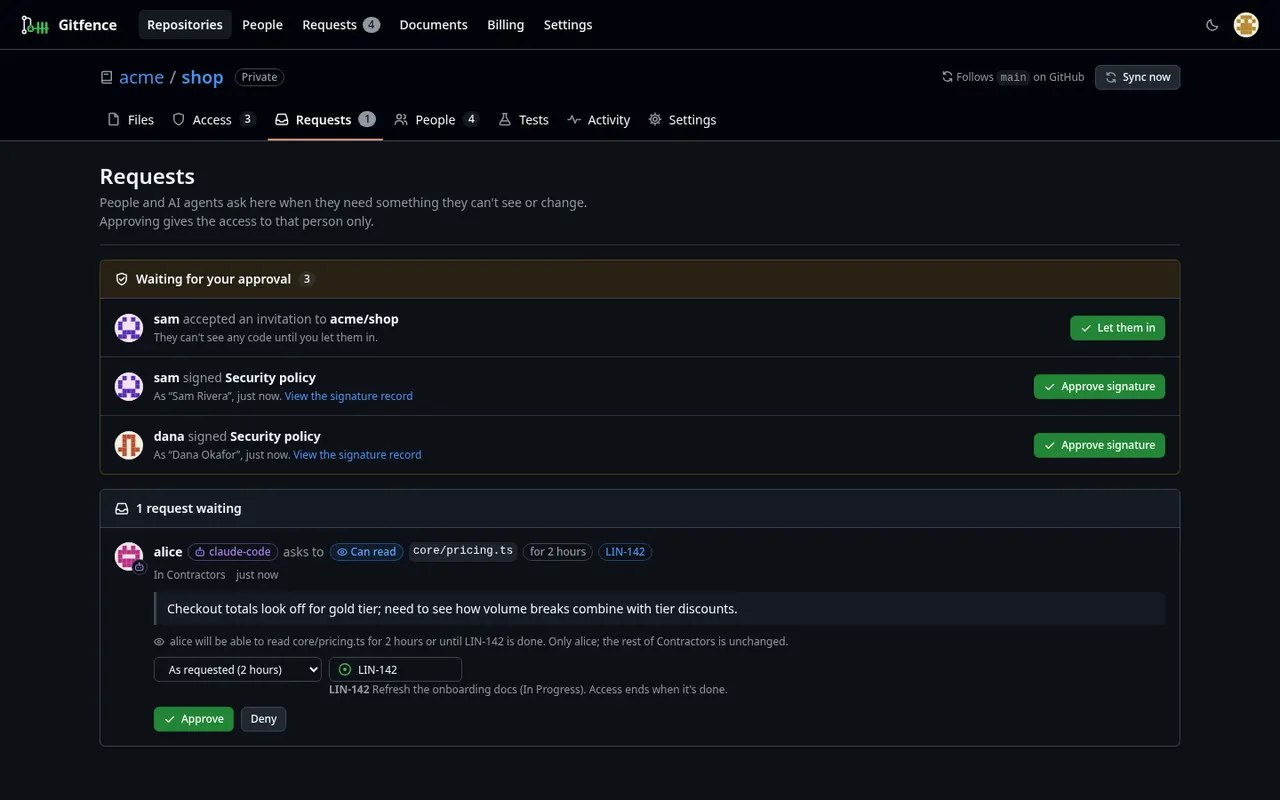
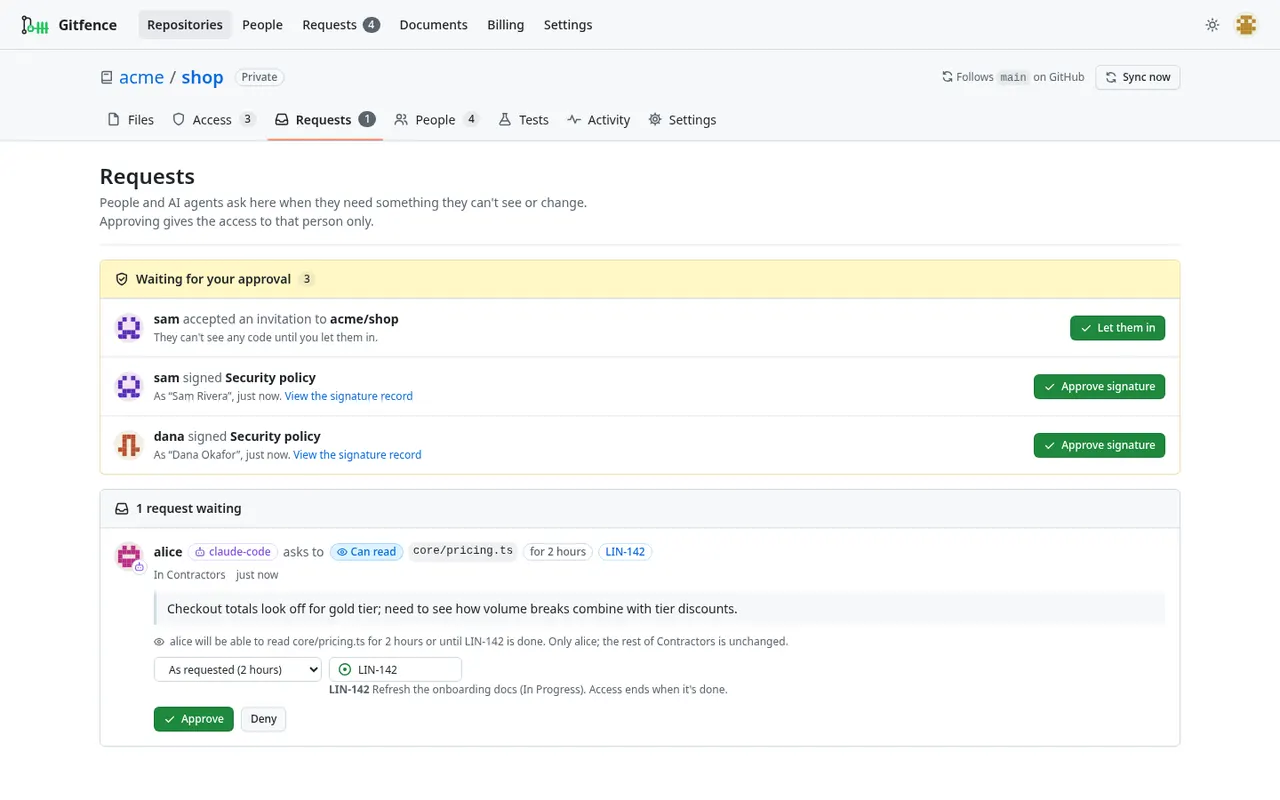
When a person or an agent needs something they can't see, they request it with a reason, and optionally for how long or for which ticket. The Requests tab shows the request and what approving it would change. Approving gives that person the access, not their whole group: permanently, for 2 hours, a day, a week, until a date, or until a Linear or Jira ticket closes. With Slack connected, requests also arrive in a channel with one-tap Approve and Deny buttons.
For restricted people: do the work
# Clone with plain git. Your username is your GitHub login; the password is a Gitfence token.
git clone https://gitfence.dev/acme/shop.git
cd shop

# Work normally: branch, commit, rebase.
git switch -c alice/checkout
git commit -am "Add checkout"

# Push a branch. Gitfence validates it and opens a pull request on GitHub.
git push origin HEAD:alice/checkout
The default branch is protected: pushes go to your own branches and become pull requests. If a push touches something outside your access, git prints the path, the reason and what to do instead, and nothing is sent to GitHub.
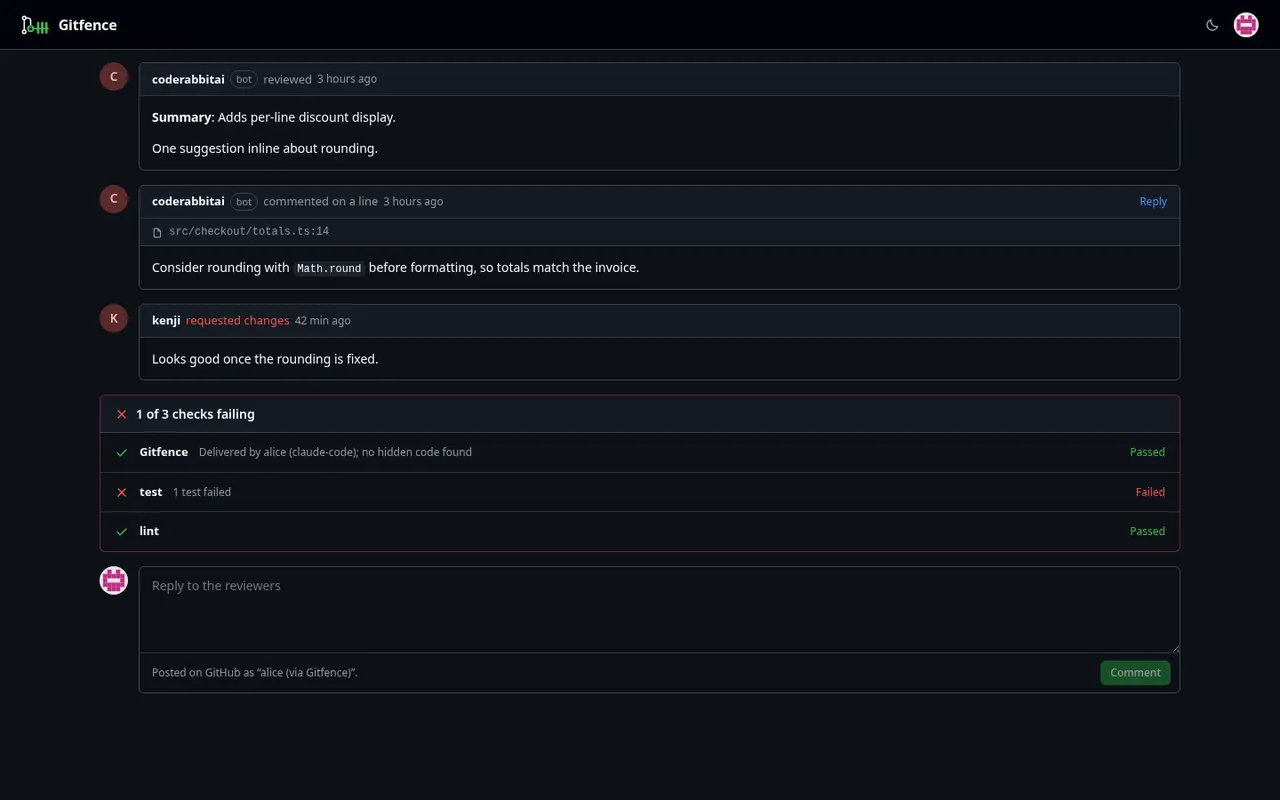
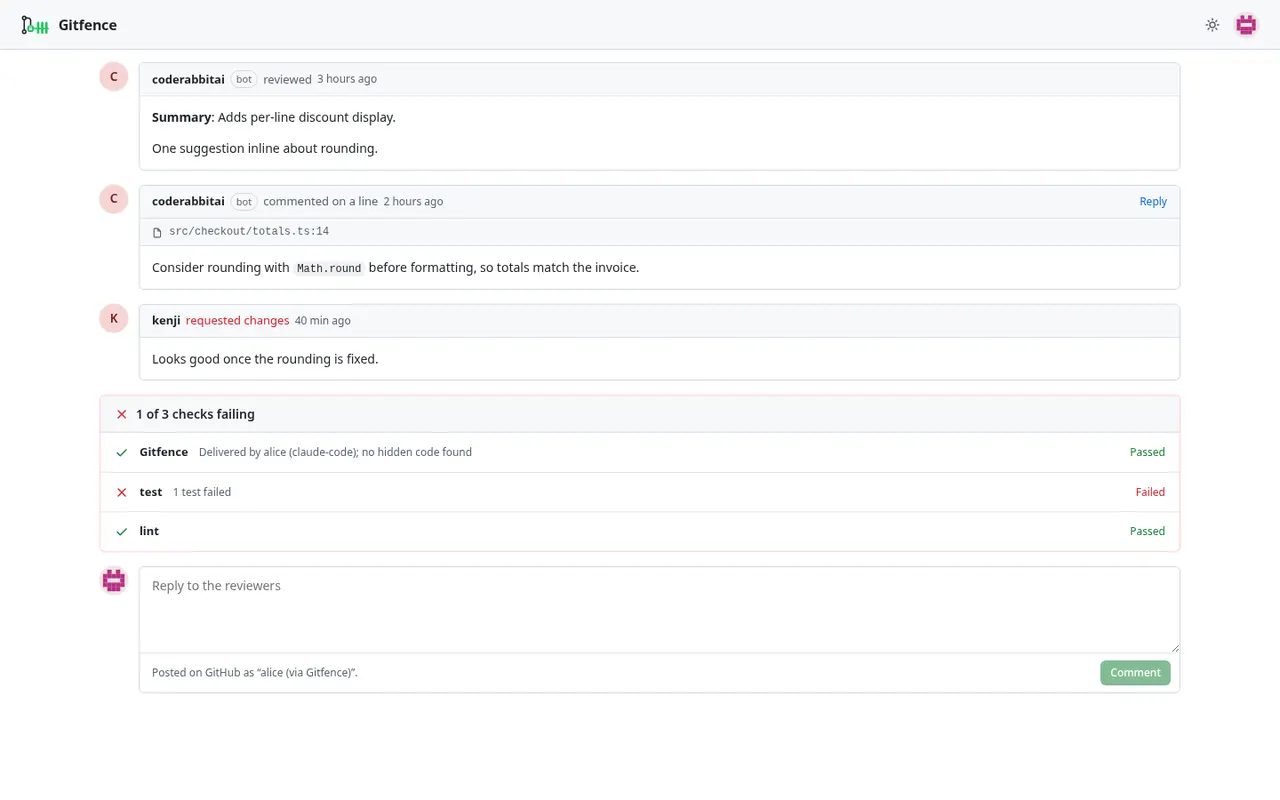
Your Gitfence home page lists your repositories and clone commands, and the documents you've signed. Each repository opens in a GitHub-like view built from your own copy: Code to browse files, Pull requests with the conversation, checks and files changed, and Issues shared with you. Reviews come back with hidden content redacted. You can reply to threads, comment on changed lines and open issues; comments appear on GitHub as "alice (via Gitfence)".
Running tests against code you can't see
If your project imports from hidden or types-only code, tests may not run locally. Fenced CI runs the repository's test command on the full code in a sandbox with no network, and returns the result with hidden source redacted. Admins can set it to return only pass/fail. Agents call it through the run_tests MCP tool. Fenced CI runs today when you self-host; on our hosted service we set it up with you.
For AI agents
Every agent gets its own token, belongs to a person and never has more access than that person. Its pull requests say which agent of which person delivered them.
The guide inside every clone
Gitfence adds a section to AGENTS.md and CLAUDE.md in each view, listing hidden, types-only and read-only paths and the rules: don't recreate, stub or mock fenced code; ask for access instead; push to a branch. Edits to that section are ignored on push, and it never reaches GitHub.
Connect the MCP server
Create an agent token on your Gitfence home page, export it as GITFENCE_TOKEN, then:
Claude Code
claude mcp add --transport http gitfence https://gitfence.dev/mcp \
  --header "Authorization: Bearer $GITFENCE_TOKEN"
Codex (~/.codex/config.toml)
[mcp_servers.gitfence]
url = "https://gitfence.dev/mcp"
bearer_token_env_var = "GITFENCE_TOKEN"
Cursor (.cursor/mcp.json)
{
  "mcpServers": {
    "gitfence": {
      "url": "https://gitfence.dev/mcp",
      "headers": { "Authorization": "Bearer ${env:GITFENCE_TOKEN}" }
    }
  }
}
Check the exact flags against your client's current MCP documentation.
| Tool | What it does |
|---|---|
list_repos |
Repositories the agent can use, with clone URL and view |
fence_status |
Hidden, types-only and read-only paths, protected branches, and the rules |
check_paths |
Whether reading or writing given paths is allowed, why, and what to do instead (the same logic as the push check) |
run_tests |
Runs the test suite on the real code through Fenced CI (self-hosted today; on hosted, set up with you) |
request_access / my_access_requests |
Ask an admin for access with a reason, optionally for a duration ("2h") or a ticket ("LIN-123"), and follow the answer |
my_pull_requests, pull_request_status, reply_to_review |
Follow its pull requests, reviews and checks, and reply |
list_issues, get_issue, comment_on_issue, create_issue |
Work with issues shared through Gitfence |
In our recorded run, Claude Code was given a feature task in a fenced repository with no mention of Gitfence. It read the injected guide and the generated declarations, wrote the feature and tests against them, ran the suite through run_tests (7 passing) and pushed a branch, without trying to recreate the hidden pricing code. Read the run.
Under the hood
Filtered history
For each upstream commit and each view, Gitfence builds a filtered commit: same author, committer and message, a tree with hidden paths removed and types-only paths replaced, and parents mapped to their filtered equivalents. Commits that change nothing visible are dropped. The repository a person clones is filled only by fetching these commits, so hidden objects never exist in it.
Forward-only views
When you change permissions, Gitfence doesn't rewrite anyone's history. It adds a commit called Gitfence: access updated that adds or removes files. git pull keeps fast-forwarding and nobody re-clones.
The push path
For each pushed commit, Gitfence computes the change against its parent and validates every path: not hidden, writable for this person, not a symlink into a fence, not a case or Unicode look-alike, not a generated file, not protected config. It then applies the change to the full upstream tree, leaving hidden files untouched, and pushes it to a GitHub branch with the same metadata. The person's own commit IDs stay valid in their clone.
GitHub collaboration
Reviews (including bots like CodeRabbit), review comments, checks and issues flow back to restricted people through the same redaction as Fenced CI. Comments on hidden or types-only files are dropped. Each fenced pull request gets a Gitfence check identifying the person and agent, confirming the branch matches what Gitfence delivered, and scanning added lines against fingerprints of hidden code.
By default, restricted people's branches go to a private fork in a separate organization with GitHub Actions off. See Security for why.
Team workflow
Temporary access
Exceptions and approvals can end: after 2 hours, a day, a week, or on a date. The end is exact. Every git, MCP and CI access first removes anything that has expired, and the person's clone loses the path on their next ordinary git pull.
Access tied to a ticket
Link a grant to a Linear issue or Jira ticket. When the ticket is done (or deleted), the access ends at once; reopening the ticket doesn't bring it back. A ticket and an expiry can be combined, and whichever comes first wins.
Slack and webhooks
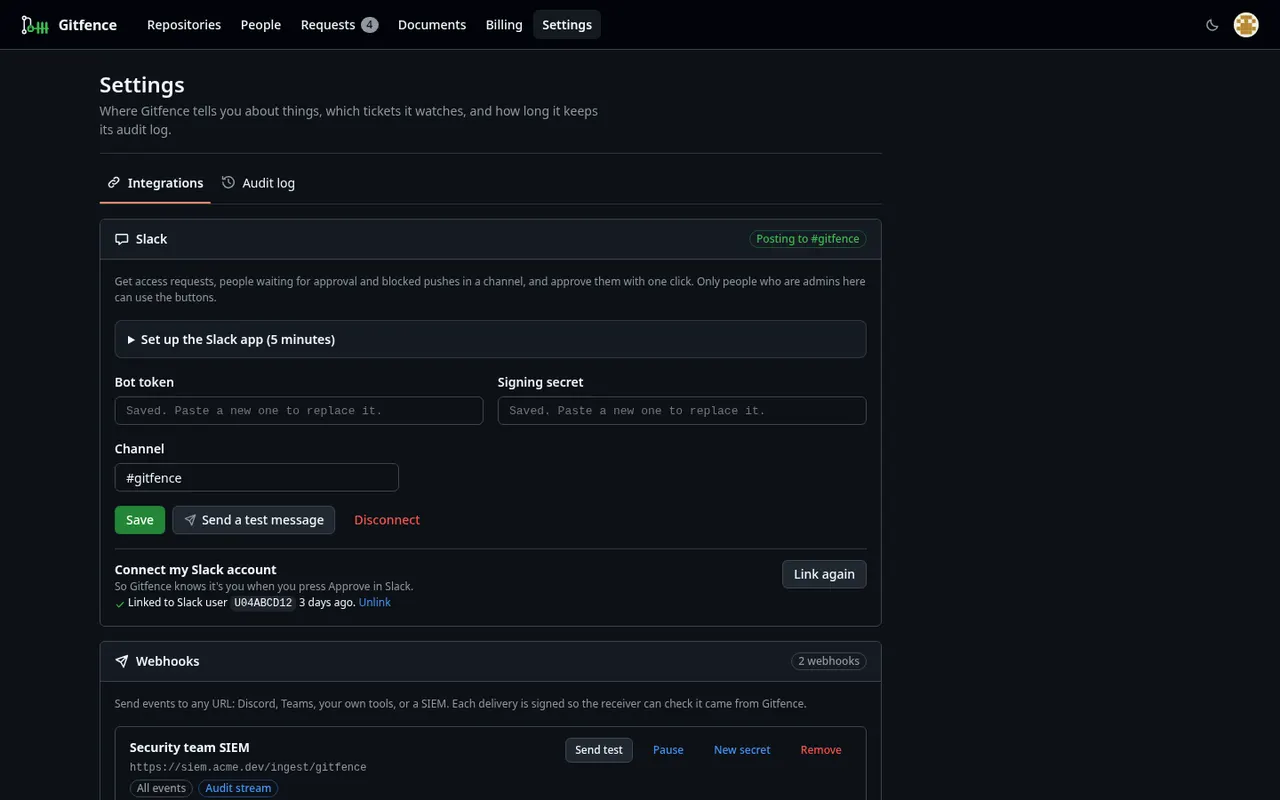
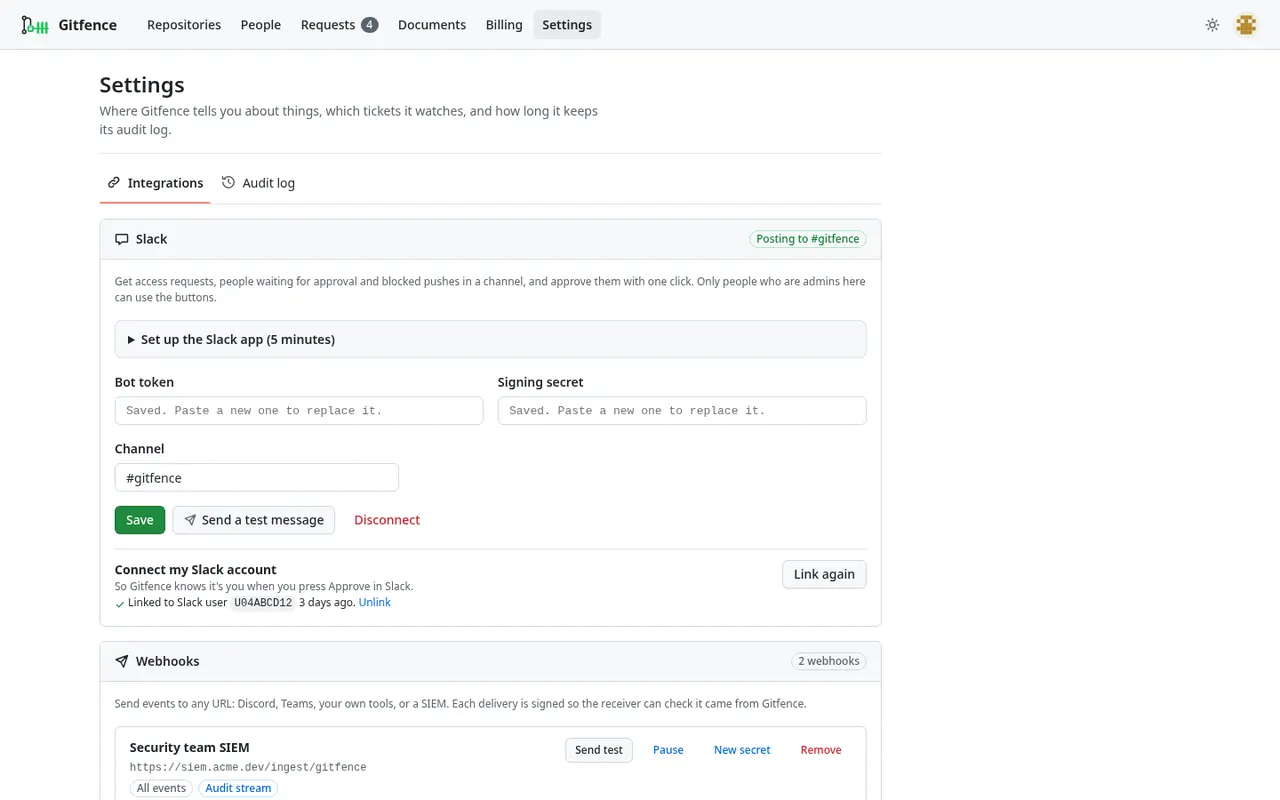
Connect a Slack app and Gitfence posts new access requests, invitations and signatures awaiting approval, and rejected pushes. Approve or Deny with one tap; only people linked to a Gitfence admin account can. Signed webhooks (HMAC-SHA256) send the same events anywhere else: a Discord or Teams adapter, or a SIEM.
Exposure reports
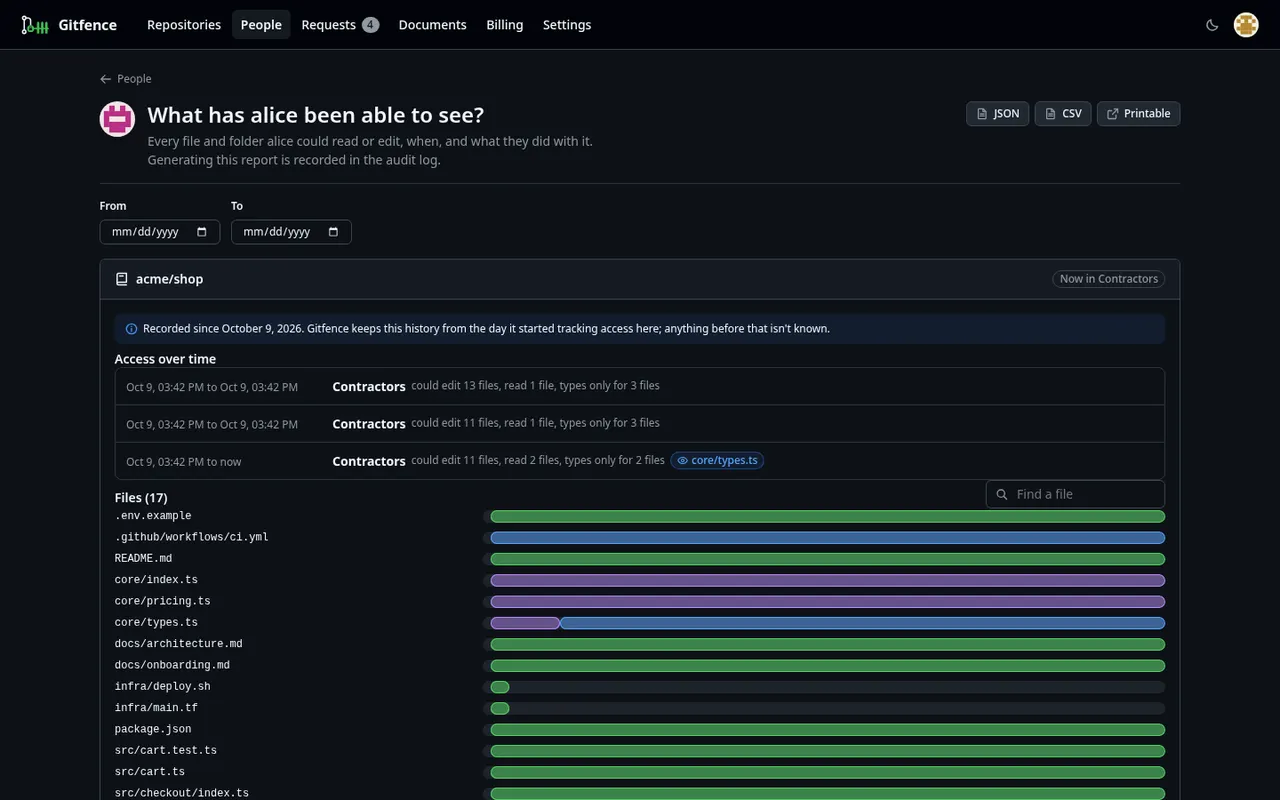
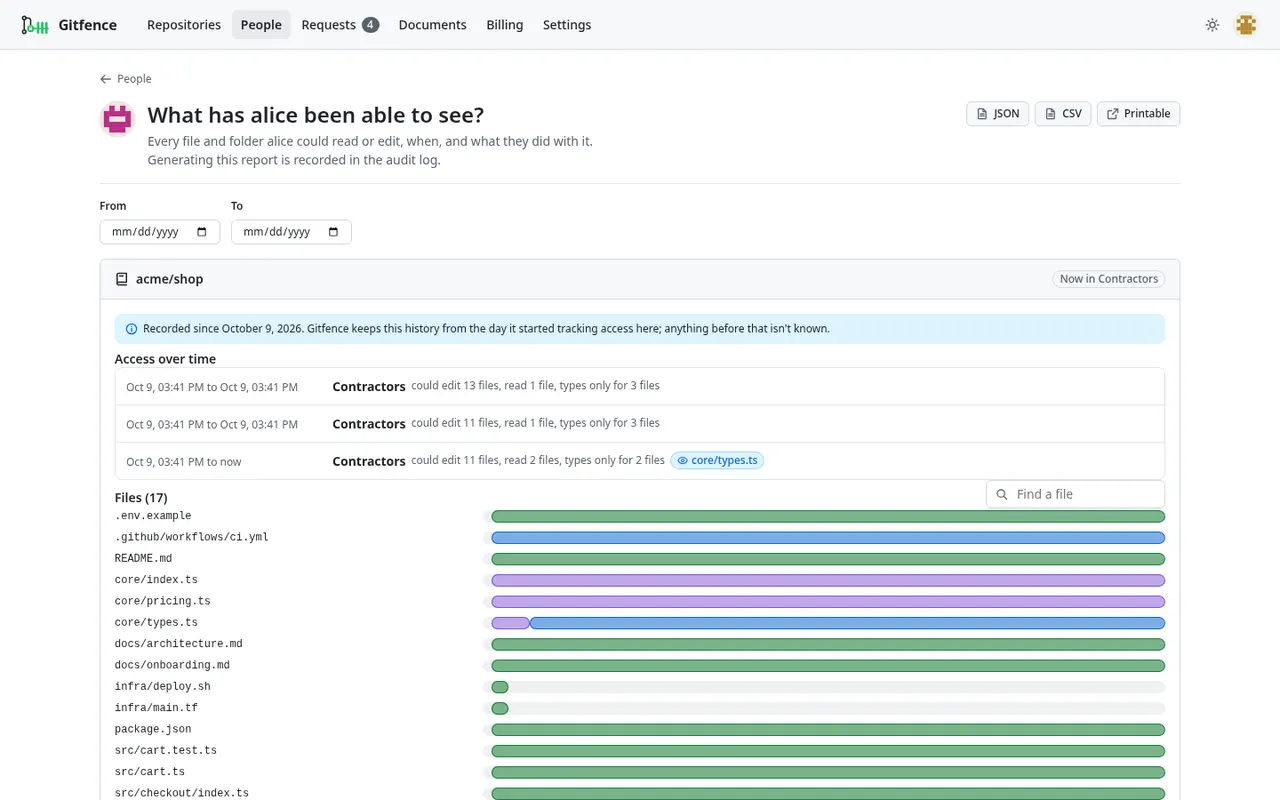
"What could alice ever see?" Gitfence keeps a ledger of every rule, membership and exception change, and replays it over the repository's history: every path a person could read or edit, and when, plus their tokens, clones, pushes and signed documents. The reverse works too: who could see core/pricing/, and when. Download JSON or CSV, or open a printable page. History before the feature was installed isn't known, and only the default branch is considered.
Audit export
Export one ordered audit log (JSONL or CSV) covering git traffic, pushes, MCP calls, test runs, invitations, signatures, settings and access changes. Set a retention period; signature evidence and rule history are always kept. A webhook can stream it to your SIEM.
These integrations are tested offline against stand-in servers that follow the Slack, Linear and Jira APIs; they haven't been run against the live services yet.
Coming soon
- Self-serve Fenced CI on hosted Gitfence (it runs self-hosted today; on hosted we set it up with you)
- A fenced GitHub mirror for cloud agents that can only clone from GitHub
- Rules as code in
.gitfence.yml, synced with the UI
Today Gitfence works with GitHub only: github.com, and GitHub Enterprise Server when self-hosted. Types only covers Go, Python and TypeScript.
See it happen
A contractor clones, tries to push into core/, then pushes real work.
- Hidden code isn't there to copy, not even in history.
- Pushes into the fence are refused, with what to do instead.
- Real work becomes a pull request on GitHub.
$ git clone https://gitfence.dev/acme/shop.gitCloning into 'shop'...fatal: remote error: Gitfence: sign Contractor NDA for acme/shop first: https://gitfence.dev/documents? repo=acme%2Fshop# alice signs the NDA in her browser, then:$ git clone https://gitfence.dev/acme/shop.gitCloning into 'shop'...$ cd shop && lsAGENTS.md CLAUDE.md README.mdpackage.json src$ git log --all --oneline -- core | wc -l0# she tries to rebuild the recommender:$ git add core/recommender.ts$ git commit -qm "Add recommender"$ git push origin HEAD:alice/checkoutremote: GITFENCE REJECTED: push toremote: alice/checkoutremote: x core/recommender.ts [9c1e47b2]:remote: core/ is fenced (hidden)remote: for your accessremote: Do instead: do not create,remote: recreate or stub fenced code.remote: Use what your view provides, orremote: ask a repository admin for accessremote: (name the path and why) ! [remote rejected] HEAD -> alice/checkout (pre-receive hook declined)# she drops that commit and pushes her work:$ git reset -q --hard HEAD~1$ git push origin HEAD:alice/checkoutremote: Gitfence: alice/checkout acceptedremote: and synced upstream (4be81f0d)remote: Gitfence: pull request opened:remote: https://github.com/acme/shop/pull/42 * [new branch] HEAD -> alice/checkout
The real product, not a mockup
core/ to Types only, review, save, preview as a contractor.What you get
Per folder or file
No access, Types only, Can read, Can edit.
Types only
Go, Python and TypeScript: their code still builds. The logic stays home.
Fenced CI
Tests on the real code, with no network. Runs self-hosted; on hosted, we set it up with you.
Agent seats
An agent can get less than its owner, and ends on its own.
NDA before code
Nothing clones until the documents are signed.
Risk-based review
Risky pull requests go to a person. The rest are marked low risk.
Secrets left out
Keys and .env files never reach a restricted copy.
Signed receipts
What each person and agent was served, checkable by anyone.
Set up in minutes, without an engineering team
Hiring someone who codes with AI? Describe what's off limits in your own words.
- Paste one prompt into Claude Code. Say what's off limits in your own words.
- Approve the GitHub app. The only click that has to be yours.
- Check the preview. Nothing changes until you say yes.
- Send the invite links. Risky pull requests come back marked for you.
Team workflow
Built for the day-to-day of granting, reviewing and ending access. Details are in the Team workflow section above.
Temporary access
2 hours, a day, a week or until a date.
Ticket-scoped access
Ends when the Linear or Jira ticket closes.
Slack approvals
Requests in a channel. Approve or deny with one tap.
Signed webhooks
Send events to Discord, Teams or your SIEM.
Exposure reports
What could this person ever see, and when.
Audit export
JSONL or CSV, with a retention setting.
Access requests
People and agents ask. You approve per person.
Normal GitHub PRs
Their pushes arrive as PRs your team reviews.
Screens from the product
Fence your first repository in minutes
Free for one repository and your own team. Add a restricted person and Pro is free for 14 days, no card.